


Screen Recorder - Record Video
3.53.70K Reviews
App Specs
- Version
- 1.6.6
- Updated On
- License
- Free
- Downloads
- 10,000,000+
- Developer
- MaveriSoft
- Categories
- Video Players & Editors
- Platform
- Android
Screenshots
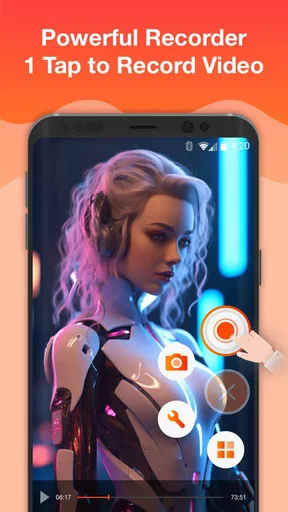
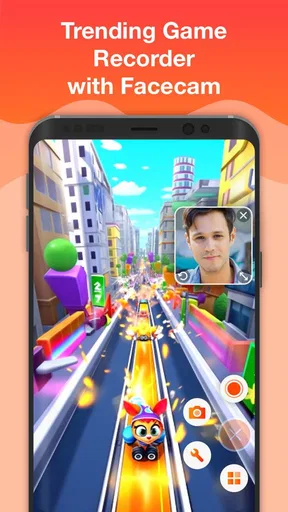
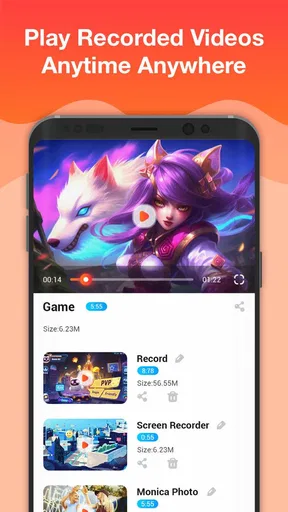
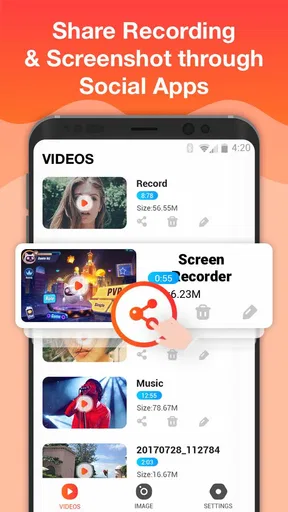

 Analysis by AppCompare
If you want a straightforward way to capture what is happening on your Android phone, Screen Recorder - Record Video is worth a look. I found it most useful for short demonstrations, game moments, troubleshooting clips, and video-call memories rather than polished production work. It belongs to the video players and editors category, comes from MaveriSoft, and is free to install, although it includes optional in-app purchases ranging from $0.99 to $69.99 per item.
The app’s appeal is easy to understand: it puts screen recording and screenshots in one place instead of making you switch between several tools. That makes the first experience less intimidating for someone who has never recorded a phone screen before. It is rated for Everyone, works from Android 5.0 onward, and has reached over 10 million installs, so it is clearly aimed at ordinary phone users rather than a specialist editing audience.
I would not describe it as a complete video studio. Its strength is getting a usable recording started quickly. If your goal is to capture a quick app walkthrough or save a memorable game sequence, that focus is helpful. If you need advanced editing, detailed audio mixing, or a professional publishing workflow, you may eventually want a different tool alongside it.
Getting from installation to a useful recording
I’d use the first session to learn the capture flow with something disposable, then check the finished clip before trusting it with a real task. That small test also helps me decide whether a screenshot would be clearer, or whether the movement in a recording is essential. Once the routine feels comfortable, I can focus on the more important choice: what should—and should not—appear on screen.
What to expect before you press record
Screen Recorder - Record Video is best approached as a capture utility first. The important question is not whether it can replace a full editor, but whether it removes the small obstacles between seeing something on your display and saving it as a video or image. In my experience, that is where the app makes the most sense.
A first-time user can reasonably expect two basic outcomes: recording the screen and taking screenshots. Those functions cover more situations than they might seem to at first. You can record the steps needed to reproduce a problem in an app, show a relative how to change a setting, capture a game sequence, or keep a visual record of a video call. A screenshot is often better for a single screen, while a recording is better when timing and movement matter.
The app’s current version is 1.6.6. I would still recommend checking the controls calmly before starting an important capture, because screen-recording tools can behave differently from the phone’s built-in recorder. A few seconds spent identifying the start and stop controls is much better than discovering afterward that the first attempt recorded the wrong screen.
Worth Reading Before You Choose

EA SPORTS FC Mobile 26 Is a Bigger Football Game, but It Takes Time

Flipboard Shows What News Apps Must Do Beyond the Feed

Switching to Android Auto Means Rethinking Your Driving Routine

Google Calendar Makes a Crowded Week Easier to Manage

Ludo King Makes the Most of the Minutes Between Plans

Baby Panda World Brings Quick Play to Modern Phones, but Its Game Library Feels Busy
One practical limitation is that a recording reflects whatever appears on the display. Notifications, incoming messages, accidental taps, and transitions into other apps can become part of the file. I treat the first attempt as a rehearsal, especially when recording a personal conversation or anything that may contain private information.
Setting up the first attempt
After opening the app, I suggest starting with a simple, low-pressure test. Go to a screen that contains no sensitive information, open the recording control, and begin a short capture. Then stop it and play the result back. This confirms that the basic workflow feels clear on your phone before you use it for a longer game session or an important explanation.
Before recording, prepare the screen rather than trying to fix everything afterward. Close unrelated apps, remove visible personal details, and move to the exact page where you want the demonstration to begin. For a game, wait until you are at the menu or level you want to show. For a tutorial, arrange the first step so the viewer does not have to watch you search for it.
That preparation is more valuable than it sounds. A screen recorder captures hesitation just as faithfully as success. If I am showing someone how to change a setting, I first navigate to the starting point, stop, and only then begin recording. The resulting clip is shorter, easier to follow, and less likely to expose unrelated information.
For video calls, I would be especially careful. Recording a call can involve another person’s privacy, and the visible screen may include names, messages, or notifications. I would tell the other participant first and use a clean screen layout. The app makes capture possible, but it does not remove the need for good judgment about what is being saved.
Another useful habit is to decide whether you need a still image or motion before opening the controls. If you only need to show a menu, a screenshot is faster and easier to share. If the point is a sequence of taps, an animation, or a game event, a recording communicates much more clearly. Choosing the lighter format keeps your saved media easier to manage.
The first successful action: make a short test clip
My recommended first success is a brief recording of a harmless task, such as opening an app and moving through two or three screens. Start the capture, perform the action at a normal pace, stop it, and watch the result from beginning to end. Do not judge the app only by whether the recording started; judge whether the finished clip explains what you intended.
When reviewing that test, look for three things. First, did the video begin at the right moment? Second, were the taps and transitions easy to understand? Third, did anything unexpected appear, such as a notification or a jump into another screen? These checks turn a vague first try into a repeatable method.
For a game, the same approach works with a short setup sequence. Begin before the interesting moment, leave enough context for someone else to understand what is happening, and stop soon after the result. Recording an entire session may feel convenient, but it creates a longer file that is harder to review and share. Short clips are usually more useful when the aim is to show one achievement or explain one problem.
For troubleshooting, I would record the issue exactly as it happens rather than narrating a long explanation afterward. Show the starting screen, repeat the action that causes the problem, and stop once the result is visible. This gives a support person a clearer picture of the sequence and avoids relying on memory.
For a tutorial, slow down slightly at the moment of each tap. A fast user may understand the process personally but still produce a confusing clip for someone watching later. The app does not need to add complicated presentation features for this workflow to work; careful pacing during capture does much of the job.
Where beginners can become confused
The most common confusion with any screen recorder is assuming that starting a capture is the same as creating a finished video. It is not. The recording may include the exact screen state, interruptions, and timing of the moment, so the quality of the result depends heavily on what happens before and during the capture.
A second point of confusion is the difference between screenshots and videos. A screenshot is ideal for a static result, such as a settings page or a game score. A video is better when the viewer needs to see a process. I use screenshots for instructions that have one destination and recordings for instructions that involve several actions. That simple distinction prevents unnecessary clips.
It is also easy to forget that the app is a recorder, not automatically a complete editor. If your clip contains a long pause, an accidental swipe, or an unrelated notification, you may need to repeat the capture or use another editing tool afterward. For quick personal use, repeating a short clip is often less effort than building a complex editing workflow.
Audio can also create uncertainty. A screen recording may show exactly what you need visually while still failing to communicate the explanation you had in mind. Before making an important tutorial or call recording, test how the result sounds and whether the relevant audio is present. I would never assume that a visual capture alone preserves every part of a conversation or demonstration.
Storage is another everyday consideration. Several long recordings can occupy more space than expected, particularly when they contain continuous motion. I recommend reviewing and removing failed attempts soon after testing. Keeping only the useful clips makes the app easier to use and reduces the chance of confusing an old test with the final recording.
Privacy deserves its own warning. A screen recorder can capture passwords, private chats, account details, and notifications if they appear while recording. I make a habit of turning off or hiding anything sensitive before pressing the control. This is not a weakness unique to MaveriSoft’s app; it is a basic consequence of recording the entire display.
Useful workflows beyond the obvious
One of the most practical uses is creating a visual bug report. Instead of writing that a button “does nothing,” record the path leading to the button, tap it once, and show the outcome. Keep the clip focused and avoid including unrelated account information. This gives another person a reproducible sequence rather than a general complaint.
A second useful workflow is making a private memory from a video call. I would use this only with everyone’s knowledge, prepare the screen first, and keep the recording short. A brief greeting or meaningful moment is easier to store and revisit than an entire call. The app’s value here comes from reducing the number of steps needed to preserve what is visible on the phone.
A third is creating a personal reference library for apps you rarely use. Record yourself completing an unusual task, such as finding a setting you often forget, then label the resulting clip clearly. This can be faster than searching for instructions again. I find this especially helpful when the process involves several menus but does not justify a written guide.
There is also a useful trade-off between recording and screenshots when helping someone remotely. A screenshot is quick to send and keeps attention on one location. A recording demonstrates the route, but it may reveal more of the screen than intended. I choose the screenshot when one highlighted page is enough and the video only when the sequence itself is the lesson.
How it compares with built-in tools and full editors
Many recent Android phones include their own screen recorder. If yours does, that built-in option may be the better choice for occasional captures because it is already integrated into the system and may feel more familiar. I would choose Screen Recorder - Record Video when I prefer having recording and screenshot actions collected in a dedicated app or when the phone’s existing workflow does not suit me.
The comparison changes when editing becomes important. A full video editor is better for trimming several clips, arranging a story, adding polished titles, or preparing content for publication. This app is more comfortable at the beginning of that process: capture the screen cleanly, review the result, and then decide whether further editing is necessary.
Compared with a screenshot-only utility, it is more flexible because movement can be preserved. Compared with a professional recording setup, it is much simpler but also less suited to carefully produced content. I see it as a practical middle option for people who want more than a still image without turning their phone into a production workstation.
Who should use it, and who should skip it
I would recommend it to a first-time recorder, a gamer who wants short highlights, a family member who needs to explain phone steps, or anyone who occasionally needs a visual record of an app issue. The free entry point makes it easy to try, and the Everyone age rating keeps its intended audience broad.
I would be more cautious about recommending it to someone who expects advanced editing, a highly controlled audio workflow, or a complete content-creation suite. That person may be happier with a dedicated editor or a built-in tool that offers the exact controls they need. The optional purchases, which can reach $69.99 per item, are another reason to review any purchase prompt carefully before paying for extras.
The average rating is 3.5 from around 58 thousand ratings and roughly 3.7 thousand written reviews. I read that as a sign to keep expectations realistic: the app has a large audience, but it is not a universal favorite. My own view is similar. It can be useful when its focused capture workflow matches the task, yet it should not be mistaken for a flawless replacement for every recording and editing method.
My next-step routine after the first clip
Once the test works, I would create a small routine: prepare the screen, hide private details, start a short capture, perform only the necessary actions, stop promptly, and review the result. If the clip is confusing, repeat it rather than assuming that editing will fix everything. This routine produces better results than leaving the recorder running while you search for the right moment.
I would also keep separate purposes in mind. Use a screenshot for a single visible answer, a short recording for a process, and another editor when the capture needs a polished presentation. That division lets Screen Recorder - Record Video do the job it handles best without forcing it into a role it was not designed to fill.
Overall, I see Screen Recorder - Record Video as a sensible starting point for Android screen capture. MaveriSoft keeps the idea approachable, and the combination of recordings and screenshots covers many ordinary situations. Its limitations matter, especially around privacy, interruptions, storage, and advanced editing, but they are manageable when you prepare first.
If you need a quick way to show what happened on your screen, I would try it with a short, unimportant test before relying on it for something valuable. That first successful clip will tell you more than the store summary: whether the controls fit your phone, whether the result is clear, and whether the app’s simple approach is enough for the way you actually work.
Pros
- Records smooth videos in high resolution on supported devices.
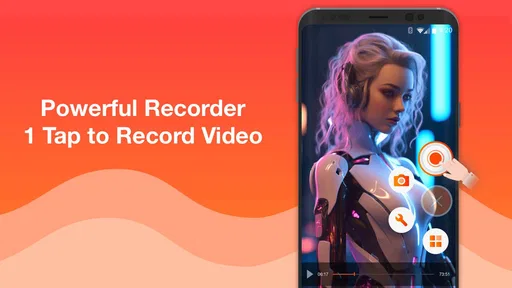
- Simple controls make starting and stopping recordings quick.
- Can capture app demonstrations
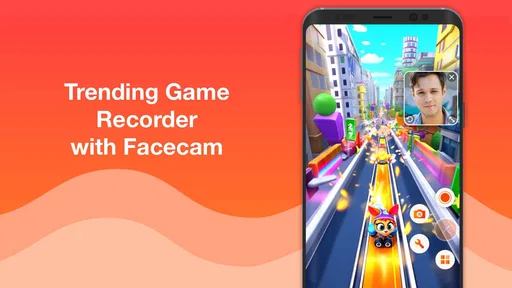
- gameplay
- and video calls.
- Useful for creating tutorials without needing extra equipment.
- Recorded files are easy to save and share from the device.
Cons
- Some features may require a premium upgrade or subscription.
- Recording performance can vary between older and newer devices.
- Long recordings may consume significant storage space.
- Audio capture may not work with every app or device setting.
- Ads can interrupt the experience in the free version.
FAQs for Screen Recorder - Record Video
What is Screen Recorder - Record Video used for?
Screen Recorder - Record Video is designed to capture activity on your smartphone screen as a video. It can be useful for creating tutorials, recording gameplay, saving video calls where permitted, demonstrating app problems, or sharing step-by-step instructions. After recording, you can usually review, trim, and share the resulting file directly from the app or your device’s gallery.
Does Screen Recorder - Record Video record internal audio and microphone sound?
Audio support can depend on your device model, Android or iOS version, and the permissions granted to the application. Some devices allow internal system audio, while others restrict it or require the built-in screen-recording feature. Microphone recording may be available for commentary, but you should check the audio settings before starting because certain apps, calls, streaming services, or copyrighted content may block sound capture.
Will the app affect my phone’s performance or storage space?
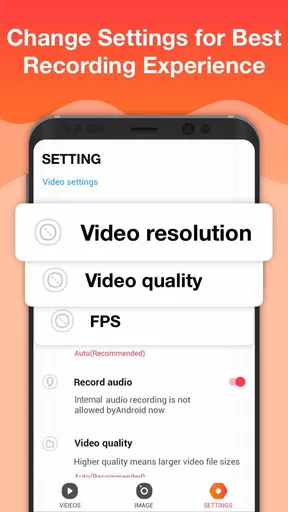
Screen recording can use noticeable processing power, battery, and storage, particularly when recording at high resolution or frame rate. Long gameplay sessions may make the phone warmer and can cause performance drops on less powerful devices. Before recording, make sure you have enough free storage and consider lowering the quality or frame rate if the app offers those options.
Can I edit and share recordings after capturing the screen?
The main purpose of Screen Recorder - Record Video is recording, but available editing tools may vary by version and platform. Basic options can include trimming the beginning or end, removing unwanted sections, or adding simple touches before saving. Finished videos can generally be shared through messaging apps, social networks, cloud storage, or email, provided the file size and format are supported.
Is it legal and safe to record other people or online content?
Using a screen recorder is generally straightforward, but permission and copyright rules still apply. You should obtain consent before recording private conversations, video meetings, or other people’s content, and avoid capturing passwords, payment details, or personal notifications. Streaming platforms and some applications may prohibit recording or display a black screen, so always follow local laws and the terms of the service involved.


